Part 2: Deploying the contract
In this section you deploy the contract to the Etherlink Shadownet Testnet, where you can test it without working with real funds.
-
In hte
backendproject, create a file namedscripts/deploy.jswith this code:// scripts/deploy.js
const hre = require("hardhat");
async function main() {
// Get the deployer account
const [deployer] = await hre.ethers.getSigners();
console.log("Deploying contract with account:", deployer.address);
// Compile & get the contract factory
const MyContract = await ethers.getContractFactory("PredictxtzContract");
// Deploy the contract
const DeployedContract = await MyContract.deploy();
await DeployedContract.deployed();
console.log("Contract deployed to:", DeployedContract.address);
}
main()
.then(() => process.exit(0))
.catch((error) => {
console.error("Deployment failed:", error);
process.exit(1);
});This script deploys the compiled contract. The account that deploys it automatically becomes the administrator account.
-
Using the Etherlink Shadownet faucet, get some XTZ in your account to pay for transaction fees.
-
Run this command to deploy the contract to Shadownet:
npx hardhat run scripts/deploy.js --network etherlinkIf deployment is successful, Hardhat prints the address of your account and the address of the deployed contract to the console, as in this example:
Deploying contract with account: 0x45Ff91b4bF16aC9907CF4A11436f9Ce61BE0650d
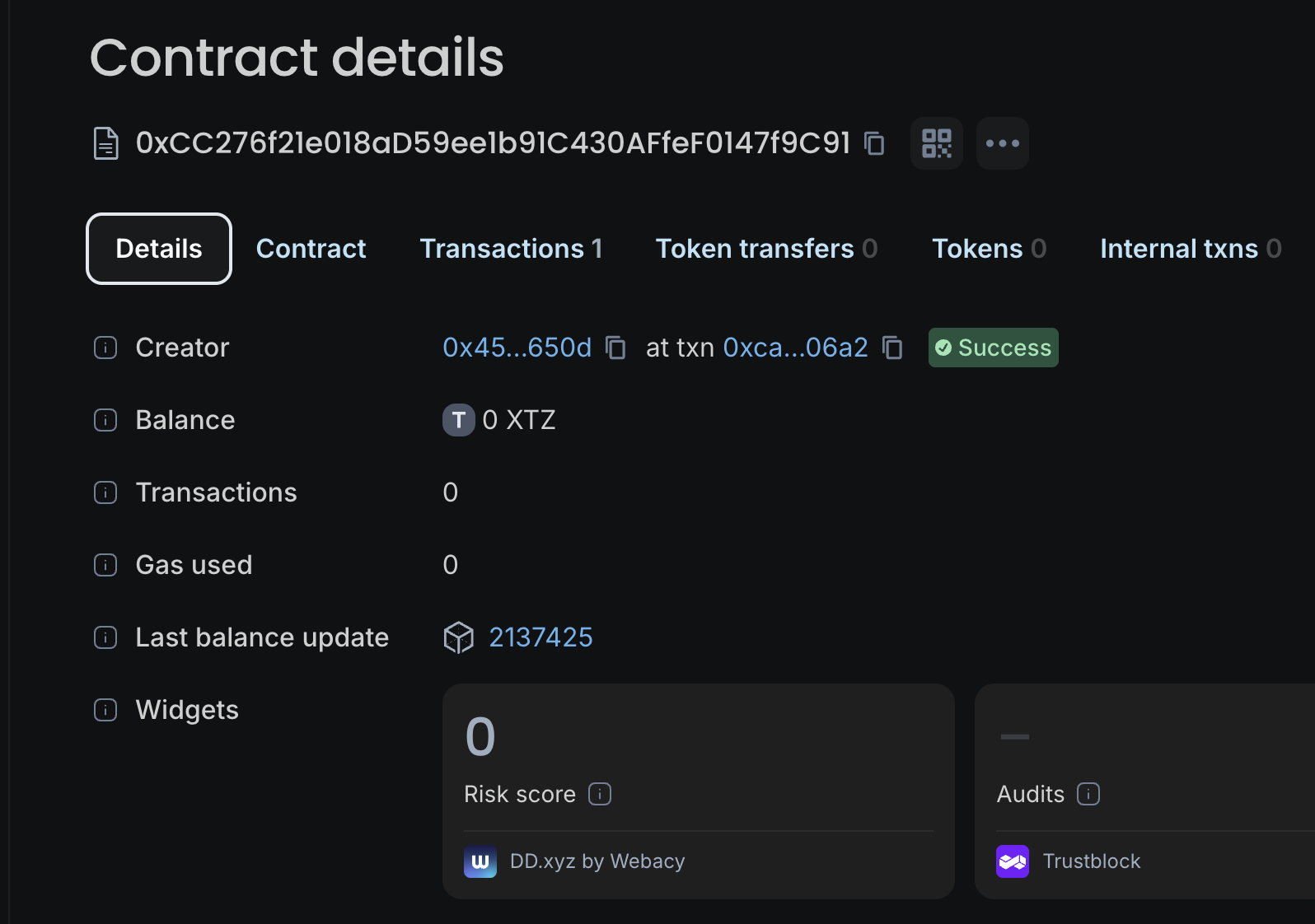
Contract deployed to: 0xCC276f21e018aD59ee1b91C430AFfeF0147f9C91
If the command failed, check your contract and deployment files and run the compilation and deployment commands again.
-
Copy the address of the deployed contract and look it up on the Etherlink Shadownet block explorer.
In the block explorer you can see the creator of the contract and information about its transactions.
Interacting with the contract
To test the contract, you can interact with it directly on the block explorer. However, you must add the ABI of the contract so the block explorer can format transactions correctly. The ABI is the complete interface for the contract, including all of its public functions and events. It is generated during the compilation process.
-
Log in to the Etherlink block explorer with your wallet by clicking
Log in, clickingContinue with Web3 wallet, and connecting your wallet. -
Upload the contract ABI:
-
Copy the ABI of the compiled contract by opening the
artifacts/contracts/Contract.sol/PredictxtzContract.jsonfile and copying the value of theabifield, which is an array. -
On the block explorer, go to the contract, go to the Contract tab, click Custom ABI, and click Add custom ABI.
-
In the pop-up window, give the contract the name
PredictxtzContractand paste the ABI array, as in this picture: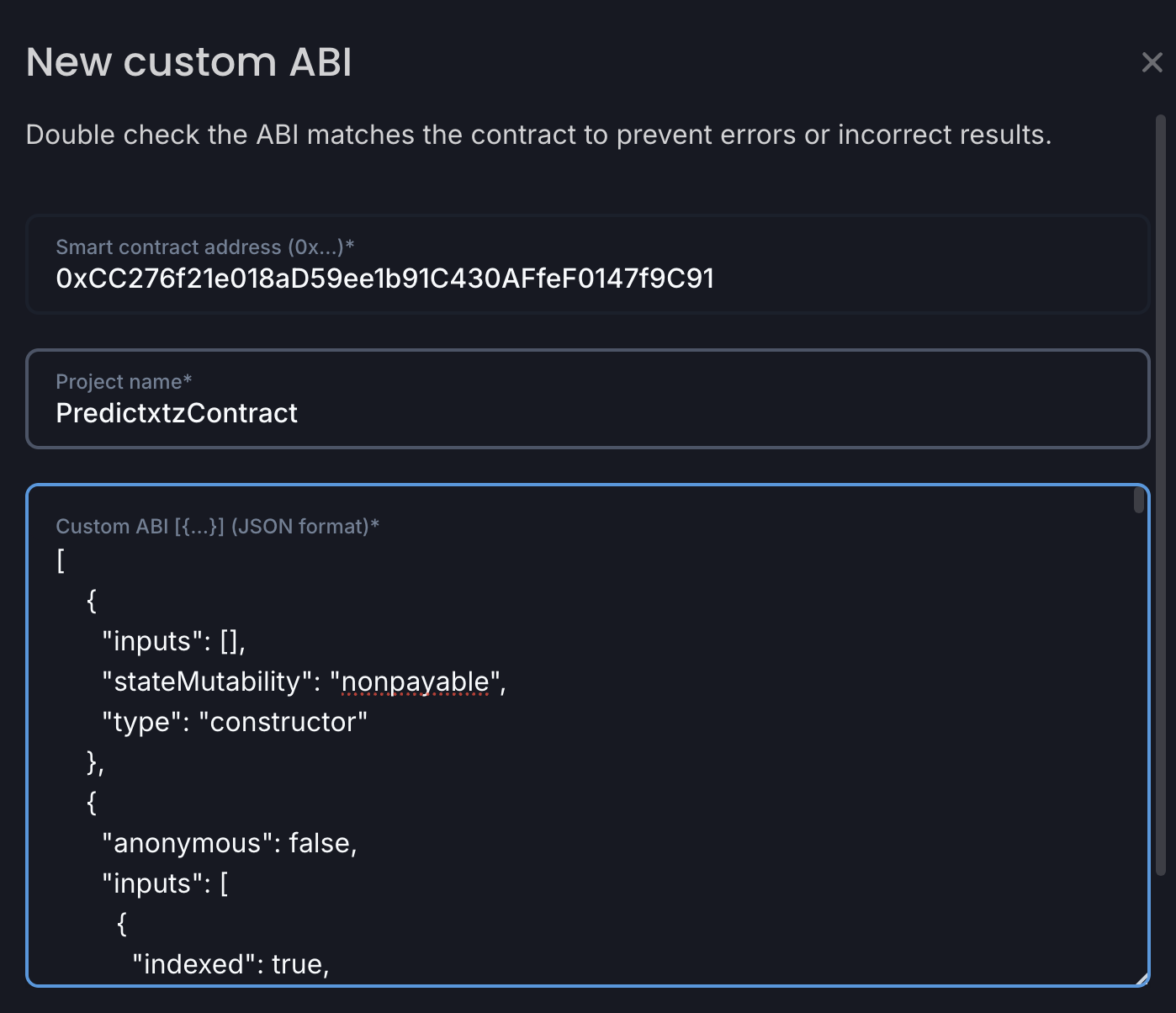
-
Click Create custom ABI.
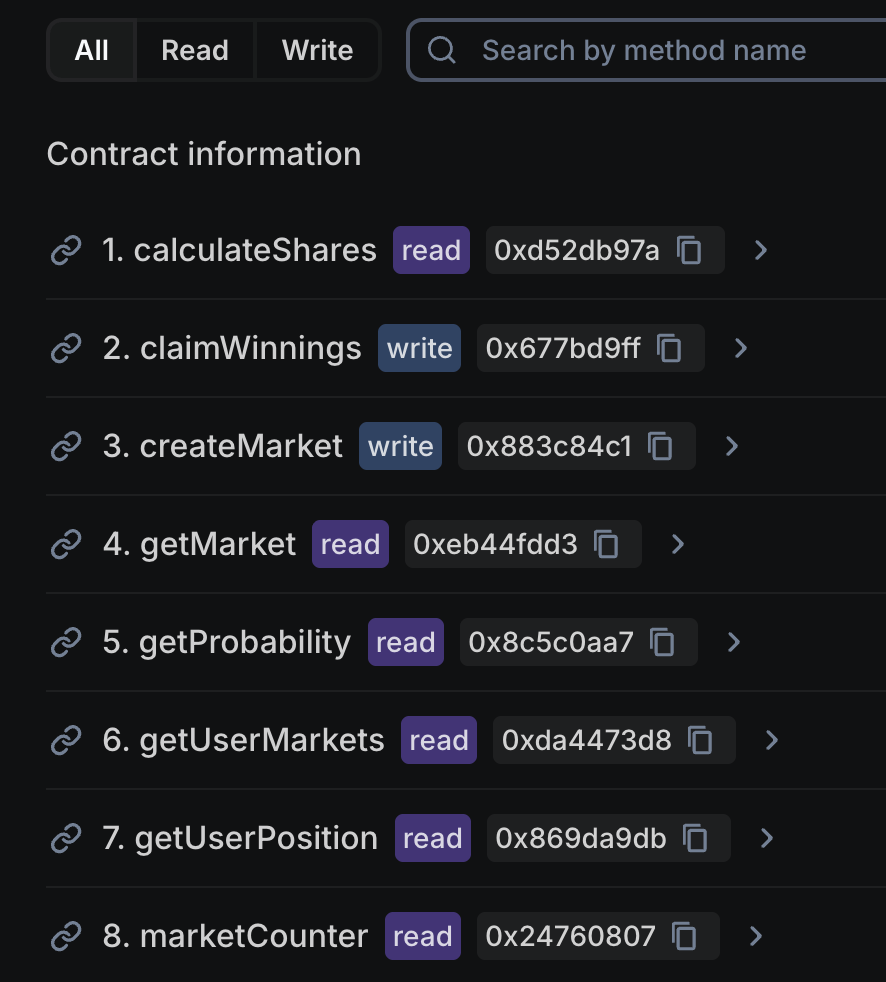
Now the Contract > Custom ABI tab shows the functions in the contract:
-
-
Create the first prediction market in the contract:
-
Expand the
CreateMarketfunction. -
In the Question field, put the question for the prediction market, such as "Will it rain one week from today?"
-
In the Duration field, enter
604 800to represent one week in seconds.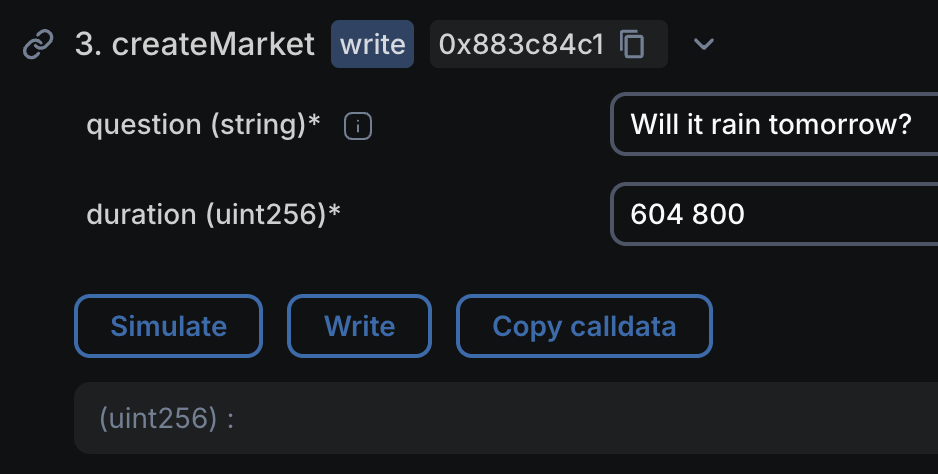
-
Click Write.
-
Approve the transaction in your wallet and wait for it to be confirmed.
-
Now the contract has an active prediction market and users can make bets. Continue to Part 3: Setting up the frontend.

 Page Outline